As a painting contractor, you likely understand the power of word-of-mouth referrals. In the digital age, online reviews have become the modern equivalent of these referrals. Among various review platforms, Google Reviews stands out as one of the most important. A high rating on Google not only helps you attract more customers but also builds credibility, which is critical in a competitive industry like painting.
But how do you ensure that you’re regularly collecting positive reviews without spending hours manually following up with customers? The answer is automation. With GoHighLevel, you can automate the entire process of requesting, collecting, and responding to Google Reviews, creating an efficient system that works for you 24/7.
In this guide, we’ll break down the entire process of setting up Google Reviews automation for your painting business using GoHighLevel. Whether you’re new to automation or a seasoned pro, you’ll find practical, easy-to-follow steps that will help you leverage GoHighLevel’s features to improve your online presence and reputation.
Key Takeaways
- Efficiency Gains: Automate your review requests to save time and increase consistency.
- Enhanced Customer Experience: Create a seamless, automated review process for your clients.
- Boost Your Online Reputation: Increase the number of Google Reviews and improve your business’s online visibility.
- Step-by-Step Setup: Follow our detailed guide to integrate GoHighLevel with Google Reviews automation.
- Affordable Pricing: Understand GoHighLevel’s pricing structure and choose the best plan for your needs.
Why Automate Google Reviews for Your Painting Business?
Automating the process of collecting Google Reviews offers several advantages:
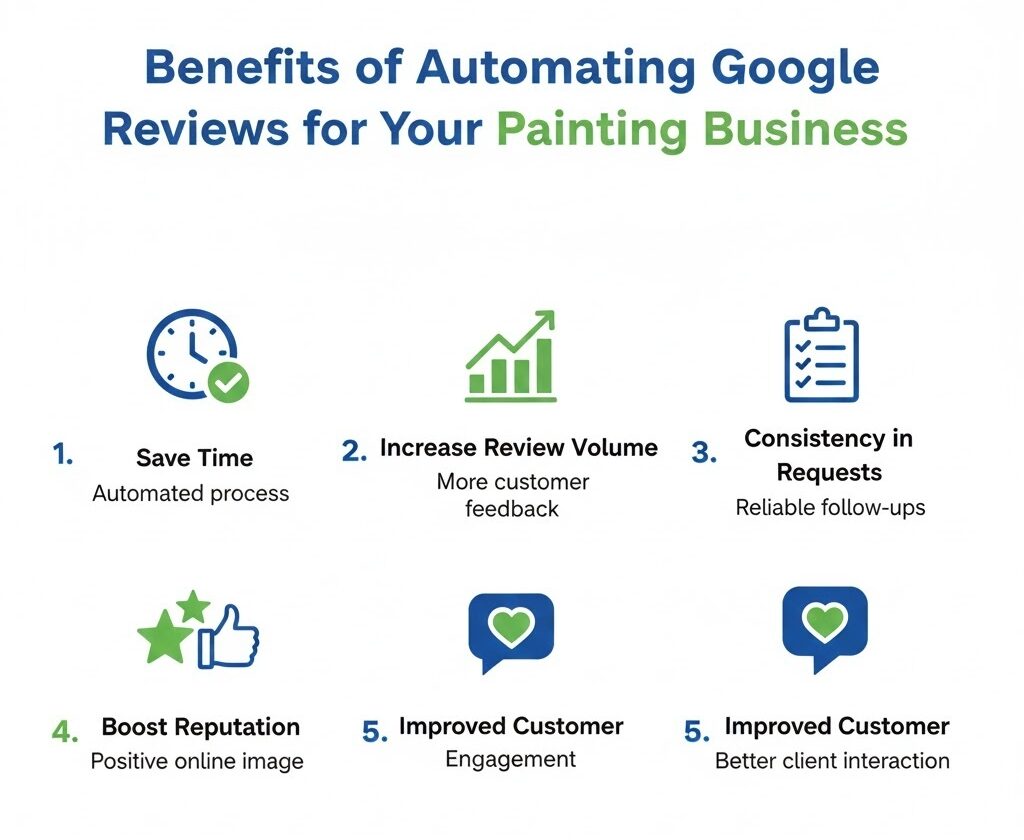
- Consistency: Automation ensures that every customer receives a review request, making the process more reliable and less prone to human error.
- Time Efficiency: With an automated system, you won’t need to follow up with customers manually. The system handles everything from sending requests to reminders.
- Increased Review Volume: Customers are more likely to leave a review when they are reminded in a timely manner. Automation helps you capture more feedback.
- Improved Reputation: The more positive reviews you collect, the higher your business’s online reputation, making you more appealing to potential customers.
- Better Customer Engagement: Automated review requests create an opportunity for ongoing customer engagement without taking up your time.
Now that you understand the benefits of automating Google Reviews, let’s dive into the step-by-step proce
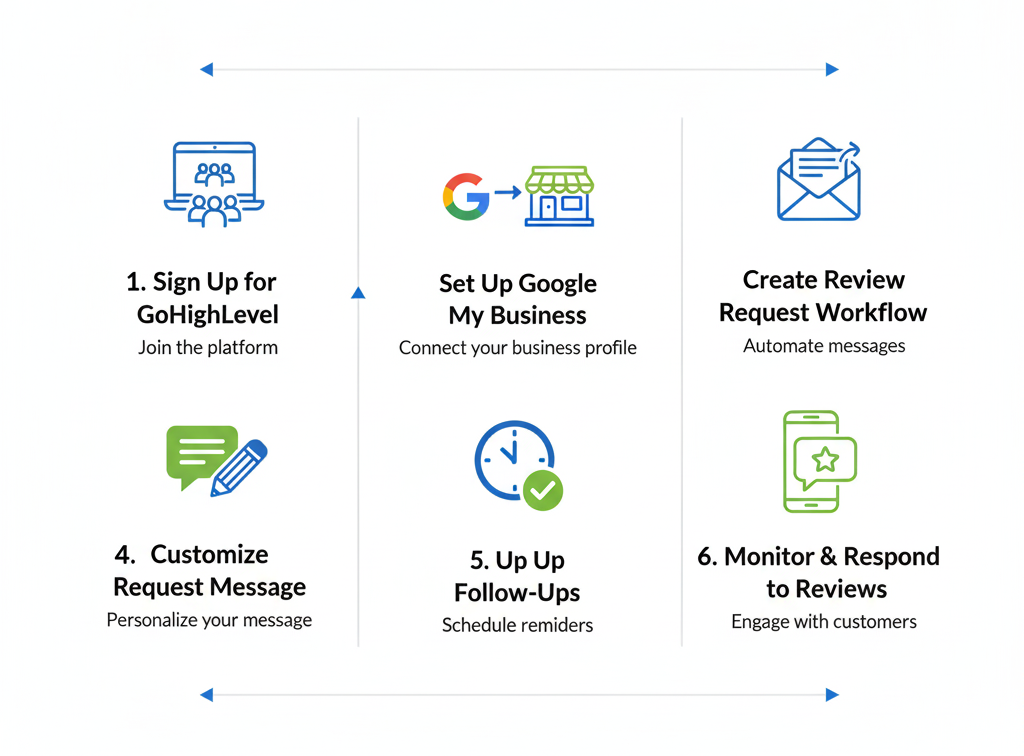
Sign Up for GoHighLevel
Before you can automate Google Reviews, you need to sign up for GoHighLevel. The platform is designed to automate various aspects of your business, from marketing to CRM and beyond. To get started:
Visit GoHighLevel’s Website: Go to the GoHighLevel website and sign up for an account.
Choose a Plan: GoHighLevel offers multiple plans depending on your business’s needs. The basic plan starts at $97 per month, while more advanced plans are priced higher and offer additional features.
Once you’ve signed up and logged into your GoHighLevel account, you’re ready to start setting up the Google Reviews automation process.
Set Up Google My Business Integration
To integrate Google Reviews with GoHighLevel, you first need to connect your Google My Business (GMB) account to the platform. This integration allows GoHighLevel to send review requests directly to your Google My Business page, where your customers can leave feedback.
- Go to Settings: In your GoHighLevel dashboard, navigate to the “Settings” section.
- Find Integrations: Under “Settings,” click on the “Integrations” tab, then select “Google My Business.”
- Connect Your GMB Account: Follow the prompts to connect your Google My Business account. You will need to sign in to your Google account and grant GoHighLevel access to manage your reviews.
Once you’ve completed the integration, GoHighLevel can interact with your Google My Business profile and request reviews on your behalf.
Create a Workflow for Google Reviews Requests
Now that you’ve connected Google My Business to GoHighLevel, you can create a workflow to send review requests automatically. This is where the magic happens!
- Navigate to the Workflows Section: In your GoHighLevel dashboard, click on the “Workflows” tab. This is where you can set up automated actions based on triggers.
- Create a New Workflow: Click “Create New Workflow” and give it a name, such as “Google Reviews Request.”
- Set a Trigger: A trigger is an event that activates the workflow. For example, you can set the trigger to be when a job is marked as “Completed” in your project management system or when a customer’s payment is successfully processed.
Customize Your Review Request Message
- Personalize the Message: Use dynamic fields (like the customer’s name and the project name) to make the message feel personal and tailored to each customer.
- Include a Call to Action (CTA): Your message should include a clear CTA, such as “We’d love to hear about your experience!” with a direct link to your Google Reviews page.
- Choose the Communication Channel: GoHighLevel allows you to send review requests via email, SMS, or both. You can choose whichever method works best for your customers.
Set Up Review Follow-Ups
Sometimes customers need a little nudge to leave a review. With GoHighLevel, you can automate follow-up emails to remind customers to submit their reviews.
- Add Follow-Up Actions: In your workflow, set up a follow-up message that will be sent a few days after the initial review request. This could be a simple reminder saying, “We just wanted to check if you had a chance to leave a review. We’d love to hear your thoughts!”
- Customize the Follow-Up: Ensure the follow-up message is polite and encouraging, not pushy.
Setting up follow-up actions helps increase the likelihood of customers leaving reviews, especially if they missed the initial request.
Monitor and Respond to Reviews
After your automation is set up, GoHighLevel will automatically collect reviews and update your Google My Business page. You can track the performance of your review requests through GoHighLevel’s dashboard, which provides detailed analytics.
- View Collected Reviews: In your GoHighLevel dashboard, you’ll be able to see which customers have left reviews and how your review request campaigns are performing.
- Respond to Reviews: GoHighLevel also helps you stay engaged with customers by sending notifications when new reviews are posted. Be sure to respond promptly to thank customers for their feedback and address any concerns.
Frequently Asked Questions
Can I use this automation for multiple locations?
Yes, GoHighLevel Agency Plan allows you to manage multiple locations, making it ideal for businesses with more than one office or branch.
Will this automation work if I only have a mobile phone and no desktop?
Yes, you can access and set up ghl automation features from both desktop and mobile devices. The platform is mobile-optimized for convenience.
How often should I send review requests?
Can I send review requests through both email and SMS?
Yes, ghl allows you to send review requests via email, SMS, or both. You can choose the most effective communication channels based on your customer preferences.
Will customers receive multiple requests if they don’t leave a review?
Yes, ghl automation includes follow-up actions, meaning customers who don’t leave a review after the initial request will receive a polite reminder. You can customize the number of follow-up messages and the timing between each reminder to avoid overwhelming your clients.
How do I ensure that only satisfied customers are asked to leave a review?
Can I automate responses to negative reviews?
Can I track how many reviews I've collected?
Yes, GoHighLevel provides detailed analytics within the platform. You can track how many review requests have been sent, how many reviews have been collected, and monitor the overall performance of your Google Reviews automation campaigns.
Conclusion
Setting up Google Reviews automation for your painting business with GoHighLevel is an excellent way to streamline the review collection process while boosting your online reputation. By automating review requests, follow-ups, and reminders, you ensure that your customers’ feedback is collected consistently without the need for manual intervention. As your collection of positive reviews grows, so will your credibility, ultimately leading to more clients and greater business success.
If you haven’t already, take the first step today and start using GoHighLevel to automate your Google Reviews process. With a few simple steps, you’ll save time, engage with customers more effectively, and build a stronger online presence for your painting business.